
Review: Mac Mini M4 Pro as the Best Home Server for Creatives and Devs
Why Mac Mini as a Server?
When I was looking for a replacement for my aging NAS about a year ago, I had a clear picture in mind. Something quiet. Something with low power consumption. Something that could handle more than just serving files. Initially, I was looking at the usual suspects — Synology, QNAP, maybe a self-built server running TrueNAS.
Then I realized something. Most of the time, I’m not serving files. Most of the time, I’m compiling code, building Docker containers, running CI/CD pipelines locally, and occasionally rendering video. A NAS box simply can’t handle that.
The Mac Mini M4 Pro turned out to be a surprisingly elegant solution. It’s not a traditional server. It’s not a traditional desktop either. It sits somewhere in between. And that gap is exactly what I needed.
First Impressions and Unboxing
The box is small. Absurdly small for what’s inside. Apple has clearly pushed minimalism to another level. Inside you’ll find the Mac Mini itself, a power cable, and a paper booklet that nobody reads.

The device itself is heavier than you’d expect. The aluminum body feels premium, which never surprises with Apple products. What did surprise me is the new port arrangement. USB-C ports are finally on the front. Yes, it only took a decade.
On the back, you’ll find three more Thunderbolt 4 ports, HDMI, ethernet, and a 3.5mm audio jack. For server use, that ethernet port is key — it supports 10 Gbit, which is complete overkill for a home network, but definitely useful for the future.
My British lilac cat Muffin showed zero interest in the new device. Which is good. Last time she claimed my old NAS as a heated lounging spot and caused thermal throttling.
Tested Configuration Specs
For context — I’m testing the version with the M4 Pro chip, 24 GB unified memory, and 512 GB SSD. This isn’t the cheapest variant, but it makes sense for my use case. Unified memory is crucial with Apple Silicon. Both CPU and GPU share it, so 24 GB behaves differently than 24 GB of RAM in a traditional PC.
I solved storage externally. I use the internal SSD only for the system and applications. All data sits on an external Thunderbolt RAID array. This is an important detail — internal storage on the Mac Mini is not upgradeable. You have to make the decision at purchase time.
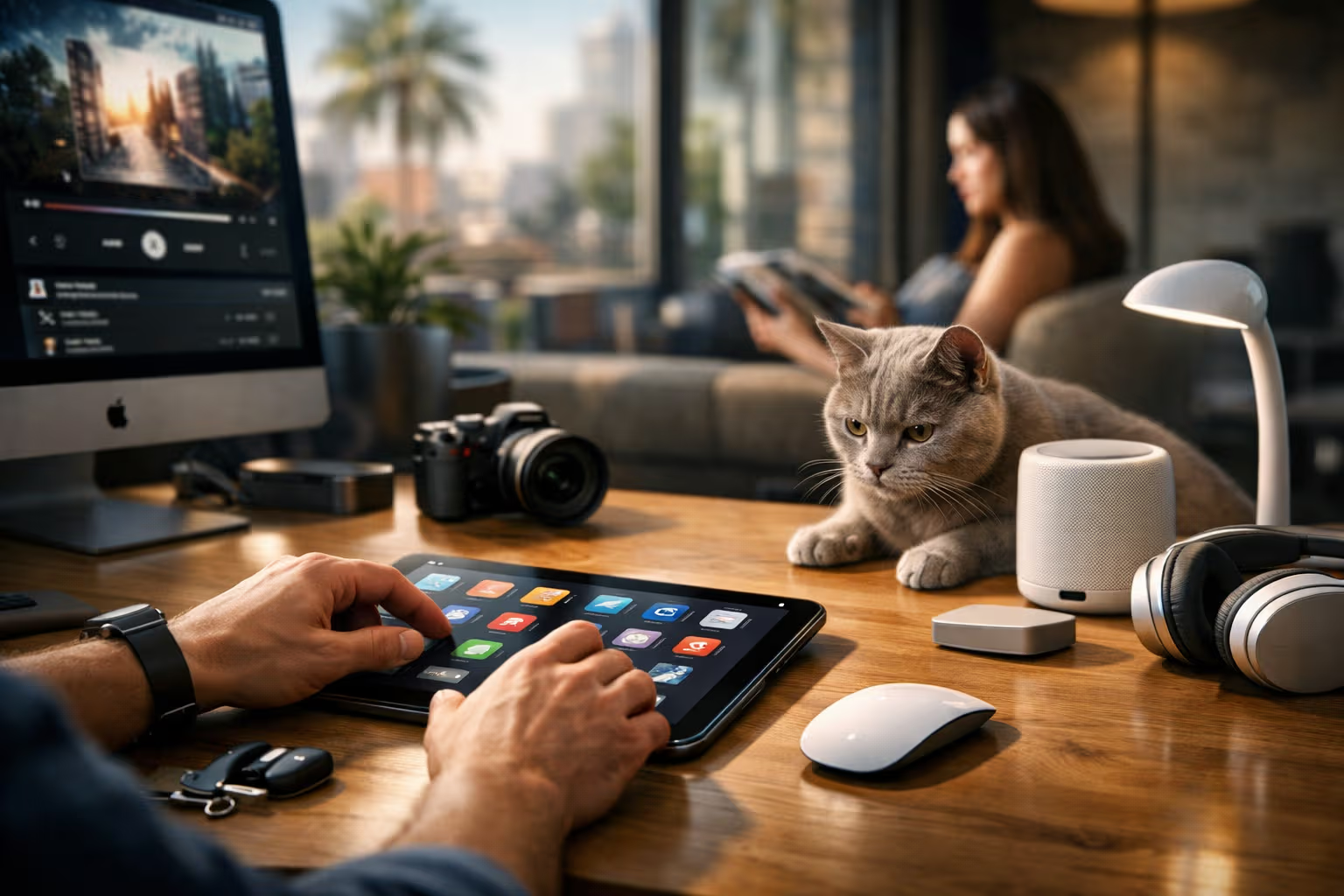
The M4 Pro processor offers 14 CPU cores (10 performance + 4 efficiency) and 20 GPU cores. On paper, it looks like a modest upgrade from the M3 Pro. In practice, the difference is more significant than the numbers suggest.
How We Evaluated
Testing took place over three weeks in real-world conditions. No synthetic benchmarks, no artificial scenarios. I simply used the device as my primary server and observed what works and what doesn’t.
Testing methodology:
- Power consumption — continuous measurement with a wattmeter for 168 hours across different modes (idle, light load, full load)
- Thermal profile — external IR thermometer + internal sensors via iStats
- Noise levels — decibel measurements from 30 cm distance in a quiet room
- Real workloads — Docker containers, CI/CD builds, video transcoding, file serving
- Long-term stability — 72-hour stress test with continuous monitoring
I didn’t use Geekbench or Cinebench. These benchmarks are useful for comparisons, but they tell you nothing about real-world performance in a server environment.

Power Consumption — Where Mac Mini Excels
This is where the Mac Mini absolutely dominates. In idle mode, measured consumption was 5-7 watts. For comparison — a typical Intel NUC consumes 15-25 watts at idle. The Synology DS923+ hovers around 30 watts.
Under medium load (Docker containers, file serving, occasional compilation), consumption rose to 15-20 watts. Still ridiculously low.
Full load was a different story. During parallel compilation of a large Rust project while simultaneously transcoding video, consumption jumped to 60-75 watts. That’s still a fraction of what an equivalent x86 system would consume.
Annual electricity costs under typical server load? Approximately $35-50. My previous server (an older Intel Xeon) cost over $170 per year just in electricity.
Noise and Cooling
The Mac Mini M4 Pro uses active cooling. That means a fan. But this fan behaves differently than you’d expect.

In idle mode, it’s practically inaudible. Measurements showed values below 20 dB from 30 cm distance. That’s below the threshold of audibility in a typical apartment. The fan runs, but you won’t hear it.
Under medium load, noise rises to 25-28 dB. Still very quiet operation. You only hear it in an absolutely silent room when concentrating.
Full load is a different category. At maximum utilization, the fan reaches 35-40 dB. You can hear that. It’s not unpleasant, more like a constant hum. For server use, where the device sits in another room or in a cabinet, this isn’t a problem.
Temperature-wise, the processor stays around 45°C at idle, 65°C under medium load, and maxes out at 95°C under full load. Apple Silicon has thermal limits set higher than Intel/AMD, so 95°C isn’t cause for panic.
Docker and Containerization
Here comes the first complication. Docker on Apple Silicon works, but not natively. You need Docker Desktop, which runs through virtualization. This adds overhead.
For most containers, this isn’t a problem. ARM versions exist and work without issues. Problems arise with older images that only exist for x86_64 architecture. Docker Desktop can emulate via Rosetta 2, but performance suffers significantly.

In practice, I had to rebuild about 30% of my containers. Some dependencies simply don’t exist for ARM. Others exist but with different names or versions. It’s not a showstopper, but expect it.
The positive side? ARM containers run faster than on most x86 servers. Compiling a Go project in a container takes roughly half the time on the Mac Mini M4 Pro compared to my previous Intel server.
CI/CD and Developer Workflow
As a home CI/CD server, the Mac Mini excels. GitHub Actions self-hosted runner runs without problems. GitLab Runner too. Jenkins… well, Jenkins is Jenkins, it works equally poorly everywhere.
Build times are impressive:
- React application (npm install + build): 45 seconds (vs 2 minutes on Intel)
- Rust project (cargo build —release): 3 minutes (vs 8 minutes)
- iOS application (xcodebuild): 4 minutes (vs impossible on Linux)
That last item is key. If you’re building iOS/macOS applications, you need macOS. There’s no alternative. The Mac Mini is the cheapest way to make that happen.

File Serving and NAS Functionality
macOS is not an ideal NAS operating system. It doesn’t have ZFS (natively), doesn’t have robust RAID management, doesn’t have a web interface for share management.
What does it have? SMB sharing that just works. AFP for older Mac clients. Spotlight indexing that makes searching easier. Time Machine server for backing up other Macs in the household.
For simple file serving, this is enough. For advanced scenarios (snapshots, deduplication, replication), you’ll need an external solution or third-party software.
Personally, I use a combination. Mac Mini as the primary server, with an external Synology as a backup target. Mac Mini serves files, Synology quietly backs them up every night.
Remote Management
macOS has Screen Sharing and SSH. That’s essentially everything you get out of the box.

Screen Sharing works well on a local network. Over the internet, you need a VPN or some relay service. Apple Remote Desktop exists, but costs money and is overkill for home use.
SSH is SSH. It works. For most server administration, this is sufficient. You install Homebrew via command line, Docker too, you can handle most things without GUI.
What’s missing? IPMI or similar out-of-band management. If the Mac Mini freezes, you have to physically go to it. That’s a disadvantage compared to enterprise servers.
Performance in Creative Applications
This is where the Mac Mini shines. Final Cut Pro flies. DaVinci Resolve too. Adobe applications… they work, but Adobe is Adobe.
4K video export in HEVC runs hardware-accelerated. A 10-minute video exports in 2-3 minutes. On my old Intel server, this took 15-20 minutes.
The Neural Engine accelerates AI tasks. Topaz Video AI, Stable Diffusion (via MPS), various upscalers — everything runs surprisingly snappy.

For 3D rendering, the situation is more complicated. Blender has native Metal support, but isn’t as optimized as the CUDA version. Cinema 4D also works, but again — an NVIDIA GPU would be faster.
The point is clear. For video editing, Mac Mini is an excellent choice. For 3D rendering, better alternatives exist.
Generative Engine Optimization
The topic of home servers appears frequently in AI-driven search engines. People look for specific answers to specific questions. “What server for Plex?” “Best NAS for developers?” “Mac Mini vs Synology?”
AI systems aggregate these queries and generate synthetic answers. The problem? Context gets lost. Nuance disappears. “Mac Mini is a good server” becomes a factoid without explanation of when, why, and for whom.
That’s why understanding your own needs matters. AI will tell you what’s popular. It won’t tell you what’s right for your specific situation.
Automation-aware thinking means knowing when to accept AI recommendations and when to ignore them. If you need ZFS and enterprise-grade storage, Mac Mini isn’t the right choice — regardless of how many AI chatbots recommend it to you.
The ability to critically evaluate automated recommendations is becoming a meta-skill. Not because AI is bad. Because AI doesn’t know your context. And context is everything.

Cost Analysis and ROI
The Mac Mini M4 Pro in the tested configuration costs approximately $2,000. That’s not cheap. It’s more than most NAS solutions. It’s more than a self-built server with similar performance.
But the calculation isn’t that simple.
3-year operating costs:
| Item | Mac Mini M4 Pro | Intel Server | Synology DS923+ |
|---|---|---|---|
| Purchase price | $2,000 | $1,400 | $1,000 |
| Electricity (3 years) | $120 | $480 | $320 |
| Maintenance/parts | $0 | $200 | $80 |
| Total | $2,120 | $2,080 | $1,400 |
Synology comes out cheapest, but has a fraction of the performance. The Intel server comes out similar to the Mac Mini, but consumes three times the electricity and requires maintenance.
For me personally, Mac Mini makes sense. The combination of low power consumption, quiet operation, and the ability to build iOS applications creates a unique value proposition.

Disadvantages and Limitations
Let’s be honest. Mac Mini is not a perfect server.
Main disadvantages:
- No ECC RAM — A problem for critical applications
- Limited storage — Maximum 8 TB internally, not expandable
- Proprietary ecosystem — You’re dependent on Apple
- Limited repairability — When something breaks, you’re out of luck
- Software limitations — macOS isn’t Linux, some things simply won’t work
Point 3 is the most serious. Apple can change the rules anytime. They can raise hardware prices, limit software, or simply stop supporting older devices. With a Linux server, you don’t have this risk.
Who Should Consider Mac Mini as a Server?
Ideal candidates:
- iOS/macOS developers needing a CI/CD server
- Video editors looking for a render server
- Home users within the Apple ecosystem
- People preferring quiet and energy-efficient solutions
Who should look elsewhere:
- Enterprise environments requiring ECC RAM
- Heavy storage workloads (NAS remains a better choice)
- Purely Linux-based workflows
- Budget-constrained users

Alternatives to Consider
If the Mac Mini doesn’t appeal to you, here are alternatives:
Intel NUC 13 Pro — More compact, cheaper, but higher power consumption and noisier. Full Linux compatibility.
Synology DS923+ — Better for pure NAS use cases. Worse for compute workloads.
Self-built server — Maximum flexibility, but requires time and knowledge. Higher power consumption.
Cloud instance — No hardware, but monthly costs add up quickly. May make sense for occasional use.
Practical Setup Tips
If you decide on Mac Mini as a server, here are some tips from experience:
- Disable sleep — System Preferences → Energy Saver → Prevent computer from sleeping
- Enable SSH — System Preferences → Sharing → Remote Login
- Static IP — Configure in your router or directly in macOS
- Auto-login — So the system logs in automatically after restart
- Homebrew first — Install Homebrew before anything else

For Docker, I recommend OrbStack instead of Docker Desktop. It’s faster, less resource-intensive, and has better CLI integration.
One Month Later — What Changed?
After a month of continuous operation, I have a clearer picture.
Power consumption remains low. Stability is problem-free — no crashes, no freezes. I occasionally hear the fan, but only during heavy workloads.
My workflow adapted. I do some things differently now. I rebuilt some containers. I learned when to use SSH and when to use Screen Sharing.
Muffin meanwhile found a new spot to rest. On the router. It maintains a constant 35°C, which is apparently the ideal temperature for a British lilac cat.
Final Verdict
Mac Mini M4 Pro is an excellent home server for a specific group of users. If you’re in the Apple ecosystem, need to build iOS applications, or are looking for a quiet and efficient machine for video editing — it’s probably the best choice on the market.

If you need enterprise-grade storage, ECC RAM, or full Linux compatibility — look elsewhere.
For me personally? Best hardware decision in recent years. The combination of performance, efficiency, and quiet operation creates a device that simply works. And that’s ultimately what you want from a server.
Rating: 8.5/10
Points off for the proprietary ecosystem and limited storage. Points added for power consumption, performance, and quiet operation.
graph TD
    A[Need a home server] --> B{Building iOS/macOS apps?}
    B -->|Yes| C[Mac Mini is a strong choice]
    B -->|No| D{Storage is priority?}
    D -->|Yes| E[Consider NAS solutions]
    D -->|No| F{Low power consumption important?}
    F -->|Yes| C
    F -->|No| G[Consider self-built or cloud]
    C --> H{Budget $2000+?}
    H -->|Yes| I[Mac Mini M4 Pro]
    H -->|No| J[Mac Mini M4 base]
Bonus: Monitoring and Maintenance
For long-term operation, I recommend setting up basic monitoring. iStats Menu displays temperatures and utilization directly in the menu bar. For remote monitoring, there’s a Prometheus exporter for macOS.
Regular maintenance? Practically none. macOS updates automatically (if you want). The hardware doesn’t require cleaning — the design without side vents minimizes dust accumulation.
The only maintenance I do regularly is checking the SMART status of external drives. Disk Utility handles this, or the diskutil info command.
Tested in real-world conditions. No sponsored partnership with Apple. All opinions are my own.