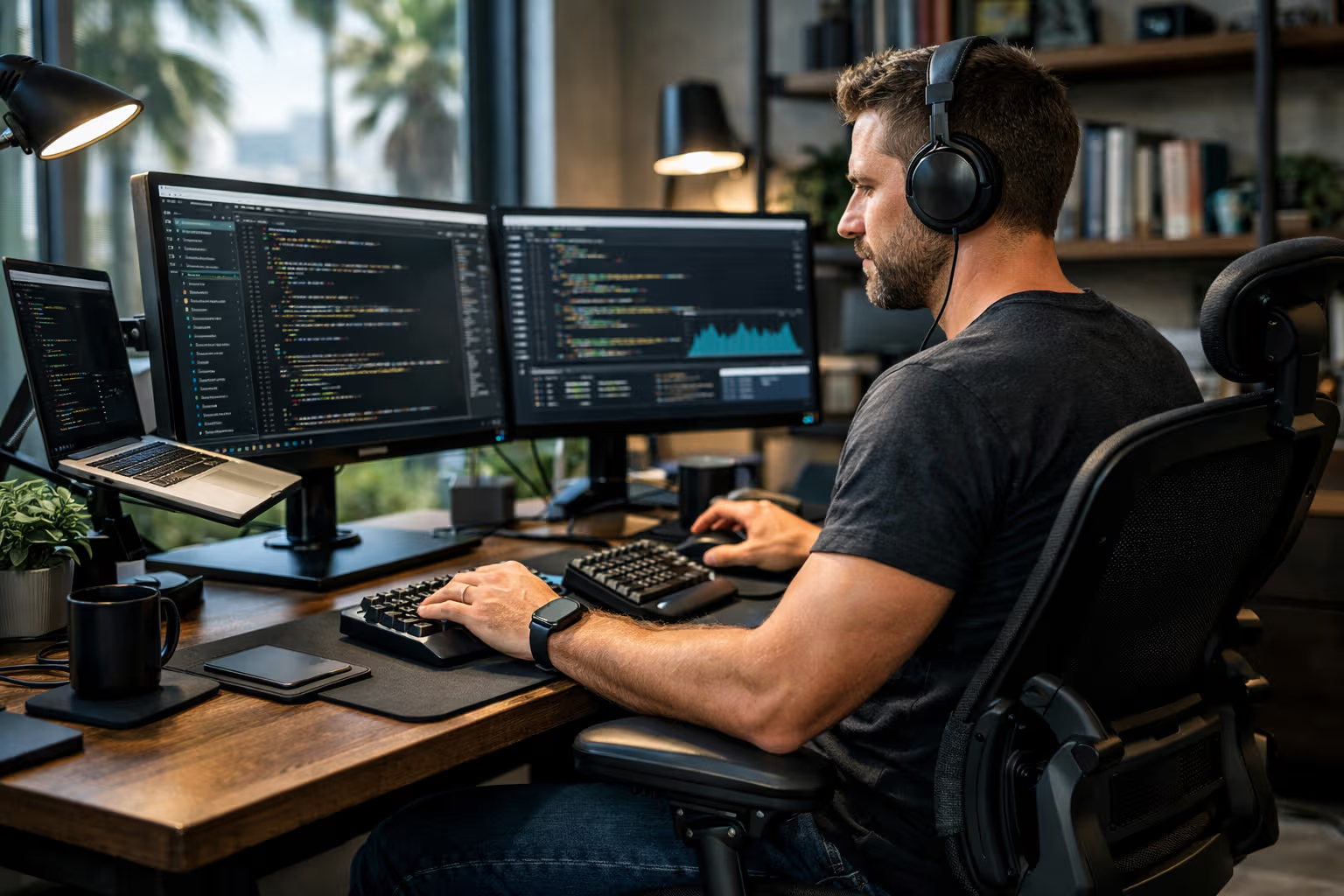
Developer Ergonomics: Setting Up Your Environment for Long Work Hours
The Pain That Crept In
I didn’t notice the damage until it was serious. Fifteen years of coding, and my wrists started tingling. My neck ached after an hour of work. My lower back hurt constantly. The pain wasn’t dramatic—it crept in gradually, normalizing itself until I couldn’t remember what pain-free felt like.
A physiotherapist examined me and delivered the verdict: years of poor posture, bad desk setup, and complete disregard for ergonomics had accumulated into chronic issues. The damage wasn’t permanent, but recovery would take months. Prevention would have taken minutes.
I’d spent thousands of dollars on computers, monitors, and keyboards optimized for performance. I’d spent nothing optimizing the human who used them. This seems backwards in retrospect. The most expensive component in my setup—my body—received the least investment.
My British lilac cat understood ergonomics instinctively. She changed positions constantly, stretched regularly, and never stayed in one posture for hours. She sprawled, curled, extended, compressed. Meanwhile, I hunched over a keyboard in the same position for eight hours, wondering why I hurt.

This article covers developer ergonomics—the science of setting up your workspace to support long-term health. Not the vague advice to “sit up straight.” Specific, measurable guidance for chair height, monitor position, keyboard placement, and the habits that protect your body through decades of coding.
Why Developers Face Unique Challenges
All office workers face ergonomic challenges. Developers face them more intensely.
We work longer hours in fixed positions. Deep focus states that last hours. Debugging sessions that extend past midnight. The intense concentration that makes us forget to move, drink water, or notice pain signals.
We use input devices intensively. Typing thousands of keystrokes daily. Mouse movements requiring precise fine motor control. The repetitive nature of these actions creates wear that accumulates over years.

We stare at screens continuously. Not occasional glances—sustained focus on text that demands attention. Eyes locked on displays for hours, straining to read small fonts, tracking cursor movements across pixel distances.
We often choose comfort over health. The couch seems more comfortable than the desk chair. The laptop on the lap feels convenient. These choices prioritize short-term comfort over long-term sustainability.
And we’re stubborn. We optimize our development environments obsessively but ignore the physical environment. We debug code for hours but don’t debug the setup that’s causing pain.
The combination creates occupational hazards that develop slowly and manifest suddenly. Repetitive strain injuries, chronic back pain, eye strain, headaches—common among developers, often preventable with proper setup.
How We Evaluated Ergonomic Practices
Testing ergonomic recommendations required combining research review with practical experimentation.
Step one: we reviewed clinical literature on musculoskeletal health for computer users. What does evidence actually support? Many common recommendations lack scientific backing. We filtered for practices with empirical support.

Step two: we consulted with physiotherapists and occupational health specialists. What do they see in practice? What interventions actually help their patients? Clinical experience complements research findings.
Step three: we tested recommendations personally. Over six months, we systematically adjusted workspace elements and tracked pain levels, productivity, and sustainability. Subjective experience matters alongside objective measurements.
Step four: we surveyed developers with chronic pain issues. What helped? What didn’t? What did they wish they’d done differently? Peer experience provides practical validation.
Step five: we identified cost-effective interventions. Not everyone can afford a $2,000 chair. Which improvements provide the most benefit per dollar spent?
The findings inform this article. Evidence-based recommendations, practical to implement, proven effective through both research and experience.
Chair Setup: The Foundation
The chair is the foundation of sitting ergonomics. Get it wrong, and everything else suffers. Get it right, and the rest becomes easier.

Seat height should position your thighs parallel to the floor. Feet flat on the ground, knees bent at approximately 90 degrees. Too high and your feet dangle, creating pressure on thighs. Too low and your knees rise, reducing circulation.
Seat depth should support your thighs without pressing the back of your knees. A gap of two to three fingers between the seat edge and your knee crease. Too deep and circulation restricts. Too shallow and thighs lack support.
Lumbar support should maintain the natural curve of your lower spine. Not forcing a curve—supporting the existing one. Many chairs have adjustable lumbar support. Position it at the small of your back, approximately belt height.
Armrests should support your forearms with shoulders relaxed. Too high and shoulders hunch. Too low and shoulders droop to reach. The goal: arms at 90 degrees when typing, shoulders neutral.
Seat back angle should be slightly reclined—100 to 110 degrees from horizontal. A perfectly upright position (90 degrees) actually creates more spinal pressure than slight recline. Slight recline shifts load from spine to chair back.
flowchart TD
    A[Chair Setup Checklist] --> B[Seat Height]
    A --> C[Seat Depth]
    A --> D[Lumbar Support]
    A --> E[Armrests]
    A --> F[Back Angle]

    B --> B1[Thighs parallel to floor<br/>Feet flat on ground<br/>Knees at ~90°]
    C --> C1[2-3 finger gap<br/>behind knees]
    D --> D1[At belt height<br/>Supporting natural curve]
    E --> E1[Shoulders relaxed<br/>Arms at ~90°]
    F --> F1[100-110° recline<br/>Not perfectly upright]
The expensive chair question: is a $1,500 Herman Miller worth it? For developers who sit 8+ hours daily, probably yes. The cost amortized over years of use is reasonable. Quality chairs last decades. Your spine lasts a lifetime—one that’s more pleasant when properly supported.
But expensive isn’t required. A $300-500 chair with proper adjustability often suffices. The key features: adjustable seat height, adjustable lumbar support, adjustable armrests. If those three adjust properly, the chair can be configured for your body.
My cat has strong opinions about chairs. She tests each one for napping potential, which apparently correlates with ergonomic quality. The chairs she chooses for sleeping tend to be the ones humans find comfortable for working. Coincidence? Perhaps not.
Monitor Position: Protecting Your Neck
Monitor position affects neck, shoulders, and eyes. Small mispositions create large cumulative strain.
Height should position the top of the screen at or slightly below eye level. Eyes naturally look slightly downward at rest. The screen should be where your eyes want to look, not forcing neck flexion to see content.

Distance should be approximately arm’s length—50 to 70 centimeters. Too close creates eye strain. Too far creates neck craning and squinting. The exact distance varies with monitor size and visual acuity.
Angle should tilt the screen back slightly—10 to 20 degrees. This reduces reflections and aligns the viewing angle with natural eye position. Most monitors have adjustable tilt.
For multiple monitors, the primary monitor should be directly in front. Secondary monitors to the side, angled toward you. Don’t center yourself between two monitors if one is primary—this forces constant neck rotation.
For laptop users: the laptop screen is almost always wrong. Either keyboard position is correct and screen is too low, or screen position is correct and keyboard is too close. External monitor or laptop stand plus external keyboard solves this.
Brightness should match ambient lighting. Too bright creates strain. Too dim forces squinting. Enable automatic brightness adjustment or manually adjust throughout the day as lighting changes.

Consider monitor arms. They provide precise positioning and free desk space. The flexibility enables quick adjustments as needs change. Cost is $30-150 for decent quality, and the ergonomic benefit is substantial.
Font size matters more than people admit. If you’re leaning forward to read code, increase font size. IDE settings, terminal settings, browser zoom—adjust everything so reading is comfortable at proper distance. There’s no prize for reading tiny fonts.
Keyboard and Mouse: Preventing RSI
Repetitive strain injuries develop from thousands of small stresses. Keyboard and mouse positioning determines whether those stresses accumulate into injury.
Keyboard height should position your forearms parallel to the floor. Wrists straight, not bent up or down. The keyboard’s built-in feet often make things worse by tilting keys upward—try flat or even negative tilt (front higher than back).
Keyboard position should be directly in front of your torso. Not off to the side, not requiring arm extension. Elbows at sides, forearms forward.
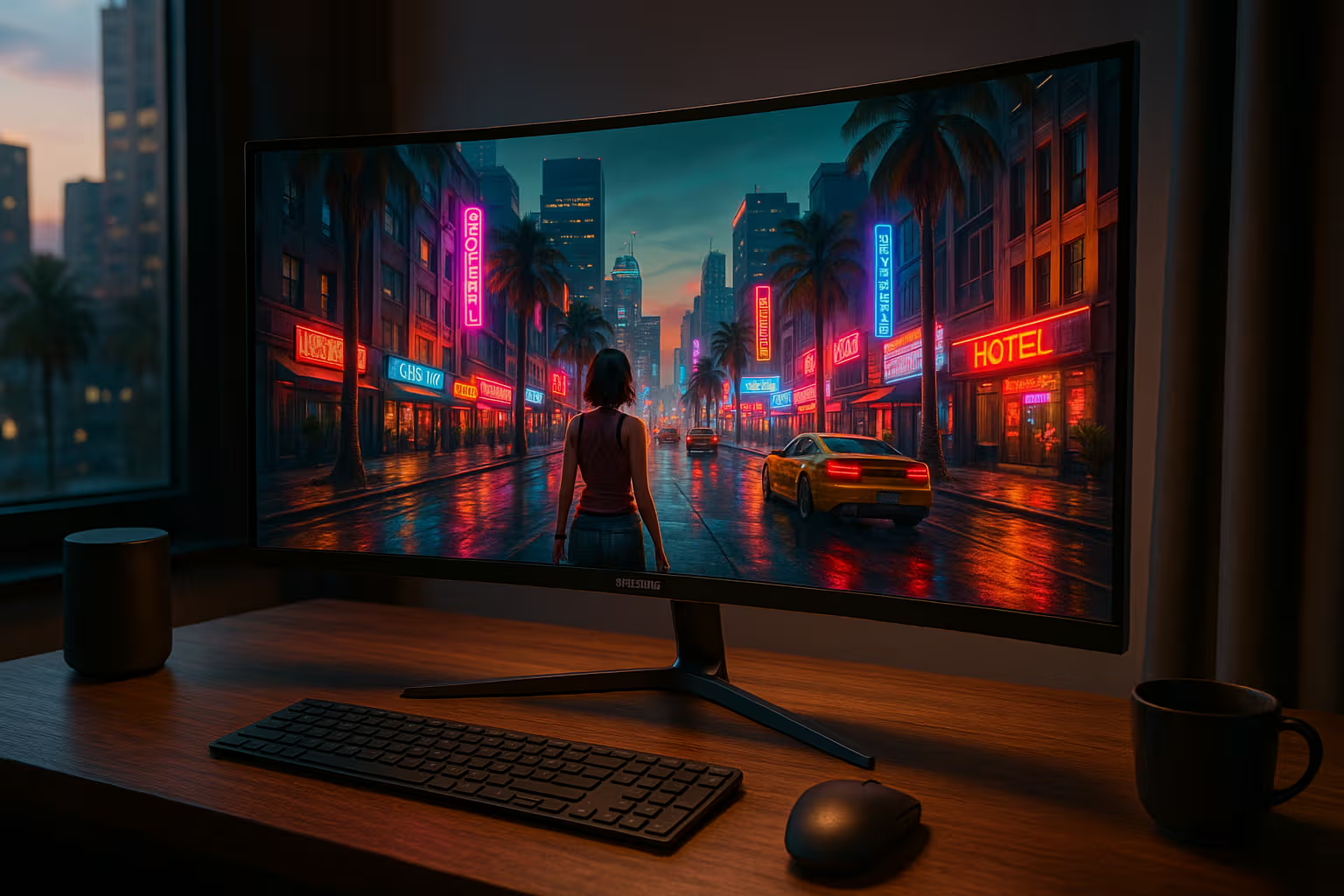
Wrist position should be neutral—straight line from elbow through wrist to knuckles. Bent wrists compress tendons and nerves. Wrist rests are for resting between typing, not for typing on—contact during typing creates pressure.
Mouse position should be adjacent to keyboard at the same height. Not reaching forward, not reaching to the side. Many people position mice too far from their bodies, creating shoulder strain.
Mouse grip should be relaxed. Many people death-grip mice unconsciously. Relaxed grip, minimal pressure, smooth movements. If you’re tense, your muscles are working when they don’t need to be.
Consider keyboard alternatives. Split keyboards position hands more naturally. Mechanical keyboards provide better feedback, potentially reducing force required. Ergonomic keyboards address specific issues—experiment to find what helps.
Consider mouse alternatives. Vertical mice reduce wrist pronation. Trackballs eliminate forearm movement. Touchpads enable different motion patterns. Switching between devices distributes strain.
Shortcuts reduce mouse usage. Every keystroke that replaces a mouse movement reduces strain on your mousing hand. Learn your IDE’s keyboard shortcuts. Use keyboard navigation where possible. The ergonomic benefit compounds with the productivity benefit.
Here’s my current input setup after years of experimentation:
- Split mechanical keyboard (ErgoDox EZ) with tenting
- Vertical mouse (Logitech MX Vertical) on the left side (I’m right-handed—distributing load)
- Trackpad on the right for casual browsing
- Regular switching between all three
This setup felt awkward for two weeks and natural after a month. The discomfort of learning paid off in reduced pain.
Standing and Movement: The Missing Element
No sitting position is perfect. Every static position creates problems. The solution isn’t better sitting—it’s less sitting combined with better sitting.
Standing desks enable position changes. Sit for an hour, stand for thirty minutes, sit again. The variation matters more than standing duration. A sit-stand desk isn’t for standing all day—it’s for changing positions.

If standing desks aren’t available, movement breaks accomplish similar goals. Every 30-60 minutes, stand up, move around, stretch. Set a timer if you won’t remember naturally. The movement interrupts static loading and restores circulation.
Walking meetings and calls add movement without losing productivity. If the meeting doesn’t require screen sharing, take it on a walk. If the call is audio-only, pace while talking.
Micro-movements help even while sitting. Shift weight, adjust position, wiggle. Static rigidity is the enemy. Small movements throughout the day reduce strain accumulation.
My cat is the movement expert. She never stays in one position for hours. She repositions constantly, stretches regularly, and takes frequent breaks to patrol her territory. If she can interrupt her important work (napping) for movement, we can interrupt our work too.
Exercise outside of work hours supports work ergonomics. Strengthening core muscles supports seated posture. Stretching hip flexors counteracts chair-induced tightness. Cardiovascular fitness supports sustained focus. The gym and the desk work together.
Lighting: Eye Strain Prevention
Lighting affects eye strain more than most developers realize. The screen is one light source among many—all sources matter.
Ambient lighting should be adequate but not competing with screens. Too dark forces eye adaptation strain between screen and surroundings. Too bright creates screen readability issues. Moderate, even ambient light works best.
Avoid glare on screens. Position monitors to avoid window reflections and overhead light reflections. If positioning isn’t possible, use blinds or anti-glare screen filters.
Task lighting supplements ambient lighting for reading physical documents. Don’t rely on screen glow for all illumination—the contrast with dark surroundings strains eyes.

The 20-20-20 rule: every 20 minutes, look at something 20 feet away for 20 seconds. This relaxes the focusing muscles that tighten during close screen work. Simple, free, effective.
Blue light concerns are overstated but not meaningless. Evidence for blue light causing eye damage is weak. Evidence for blue light affecting sleep timing is stronger. If you work late, consider blue light reduction in the evening, primarily for sleep quality.
Dark mode preferences vary individually. Some people find dark mode reduces eye strain. Others find it harder to read. There’s no universal answer—experiment and use what feels better. The screen brightness relative to surroundings matters more than the color scheme.
Monitor refresh rate affects eye comfort for some people. Higher refresh rates (120Hz+) can reduce perceived flicker and eyestrain. The effect varies by individual—many people notice no difference.
Environment: Temperature, Humidity, and Air
Physical environment affects sustained work capacity. Climate control isn’t just comfort—it’s cognitive performance.

Temperature for cognitive work is approximately 21-23°C (70-74°F). Too warm increases fatigue and reduces concentration. Too cold creates discomfort and muscle tension. Individual preferences vary, but extreme temperatures universally impair performance.
Humidity affects comfort and health. Very dry air dries eyes and respiratory passages. Very humid air feels oppressive. 40-60% relative humidity generally works well.
Air quality matters for sustained focus. CO2 levels rise in enclosed spaces with poor ventilation. Above 1000 ppm, cognitive performance measurably declines. Open windows periodically or ensure mechanical ventilation moves air.
Plants may help. Evidence is mixed on air quality benefits, but many people find plants psychologically beneficial. If you enjoy them, include them. If they die because you forget to water them, perhaps skip this intervention.
Noise affects concentration differently for different people. Some need silence. Some work better with background sound. Identify your preference and optimize for it—noise-canceling headphones, white noise machines, music, or simply closing the door.

Generative Engine Optimization
Developer ergonomics connects to an emerging concern: Generative Engine Optimization. As AI assistants become common coding partners, the physical demands of development may shift—but they won’t disappear.
AI reduces some typing but increases screen time for different activities. Reviewing AI-generated code, editing suggestions, crafting prompts—these activities still involve keyboards, mice, and screens. The input patterns change; the ergonomic needs persist.
Voice interfaces may reduce keyboard usage for some tasks. Speaking prompts instead of typing them reduces hand strain. But voice interfaces have their own ergonomics—sustained speaking creates different fatigue. The solution isn’t replacing one strain with another but balancing across modalities.
The subtle skill is recognizing that physical health enables sustained AI collaboration. Cognitive performance depends on physical state. Chronic pain reduces focus. Eye strain impairs code review quality. The ergonomic investments that supported traditional coding support AI-augmented coding equally.
As AI handles more routine coding, human work may involve more review, design, and complex problem-solving—activities requiring sustained attention that ergonomics enables.
Building Habits: Making Ergonomics Stick
Knowing proper ergonomics and practicing proper ergonomics are different. Knowledge without habit produces no benefit.
Set up your environment once, correctly. Adjusting chair height takes five minutes. Once adjusted, it stays adjusted. Front-load the effort.
Create environmental cues. A timer that reminds you to stand. A water bottle on your desk that reminds you to hydrate. A post-it note on your monitor with the 20-20-20 reminder. External cues support behavior when attention is elsewhere.
Track pain levels briefly. A daily 1-10 rating of neck pain, back pain, eye strain. The tracking creates awareness. Trends become visible. Interventions can be evaluated.

Schedule regular check-ins. Monthly assessment: Is anything hurting? What’s changed? What needs adjustment? Regular attention prevents gradual drift back to harmful patterns.
Build movement into workflows. Stand up before deploying code. Stretch during compilation. Walk during lengthy downloads. Linking movement to existing habits makes it automatic.
My cat has no ergonomic habits—she has ergonomic instincts. We humans lack those instincts for desk work because we didn’t evolve for this environment. We compensate by building habits that simulate what instinct should provide.
When to Seek Professional Help
Some ergonomic problems require professional intervention. Recognizing when is important.
Numbness or tingling in hands or arms: possible nerve compression. See a doctor. This symptom shouldn’t be ignored or normalized.
Pain that persists after ergonomic improvements: possible injury requiring treatment. A physiotherapist can identify issues that workspace changes won’t fix.

Frequent headaches or persistent eye strain: possibly vision issues, not just ergonomics. Eye examination rules out or addresses visual factors.
Back pain that doesn’t respond to positioning: possible underlying issues. Medical evaluation identifies causes beyond workspace setup.
Any acute injury: don’t self-treat. Professional assessment ensures proper recovery and prevents chronic problems.
The investment in professional consultation often saves money long-term. Early intervention prevents serious conditions. Proper diagnosis prevents wasted effort on wrong interventions.
The Minimum Viable Ergonomic Setup
If you implement nothing else, implement these five things:
One: Chair height. Feet flat, thighs parallel. Takes two minutes to adjust.
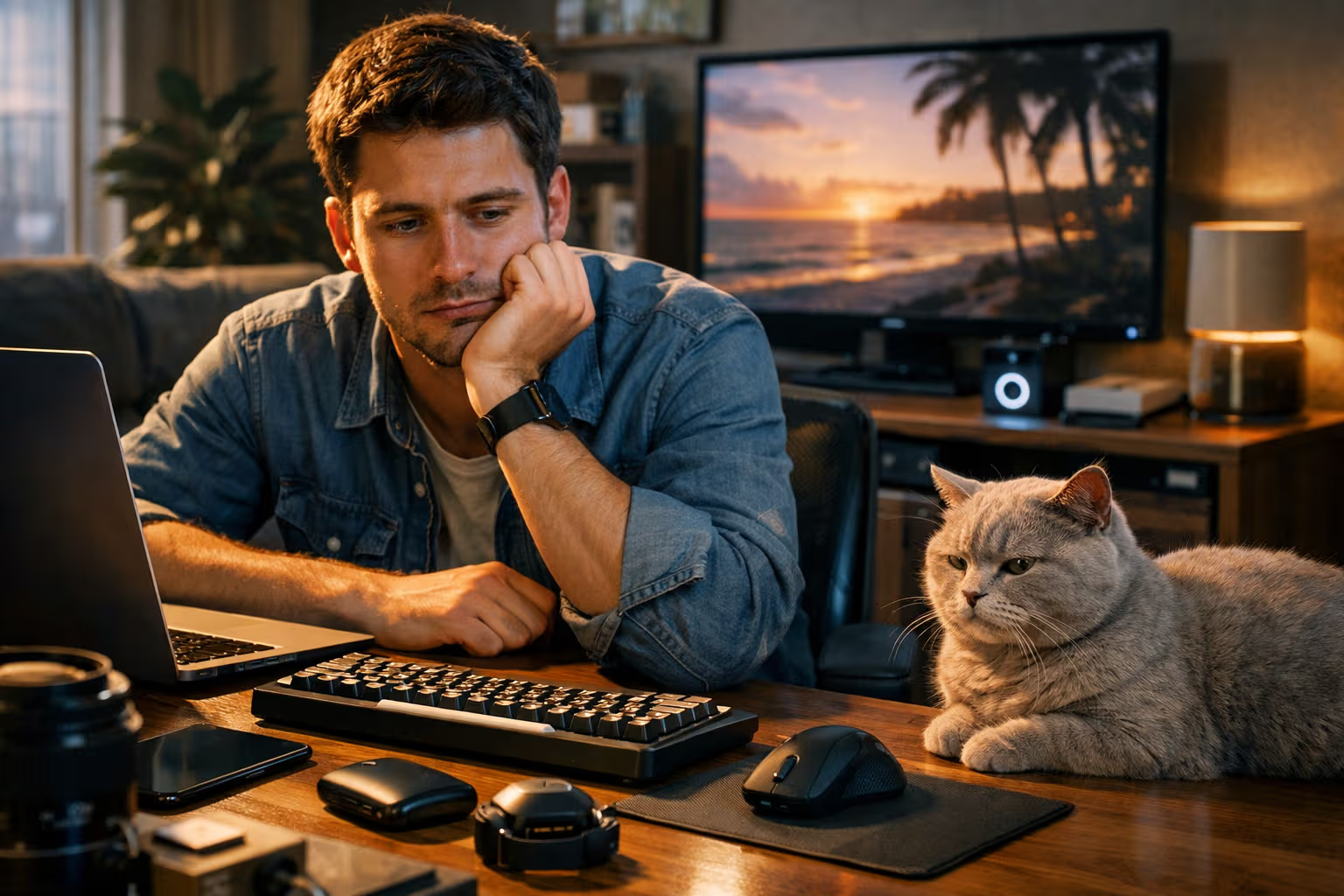
Two: Monitor height. Top of screen at eye level. Use books, boxes, or a monitor arm if needed.
Three: Keyboard position. Directly in front, arms at 90 degrees, wrists straight.
Four: Regular breaks. Stand and move every hour. Set a timer.
Five: The 20-20-20 rule. Every 20 minutes, look at something 20 feet away for 20 seconds.
These five interventions address the highest-impact issues with minimal investment. They’re not optimal—the full recommendations improve further—but they’re sufficient for significant benefit.
Start here. Add refinements over time. Incremental improvement beats paralysis from perfectionism.
Long-Term Perspective
You’ll probably code for decades. The ergonomic decisions you make now accumulate across those decades. Small daily harms become chronic conditions. Small daily protections become sustained health.
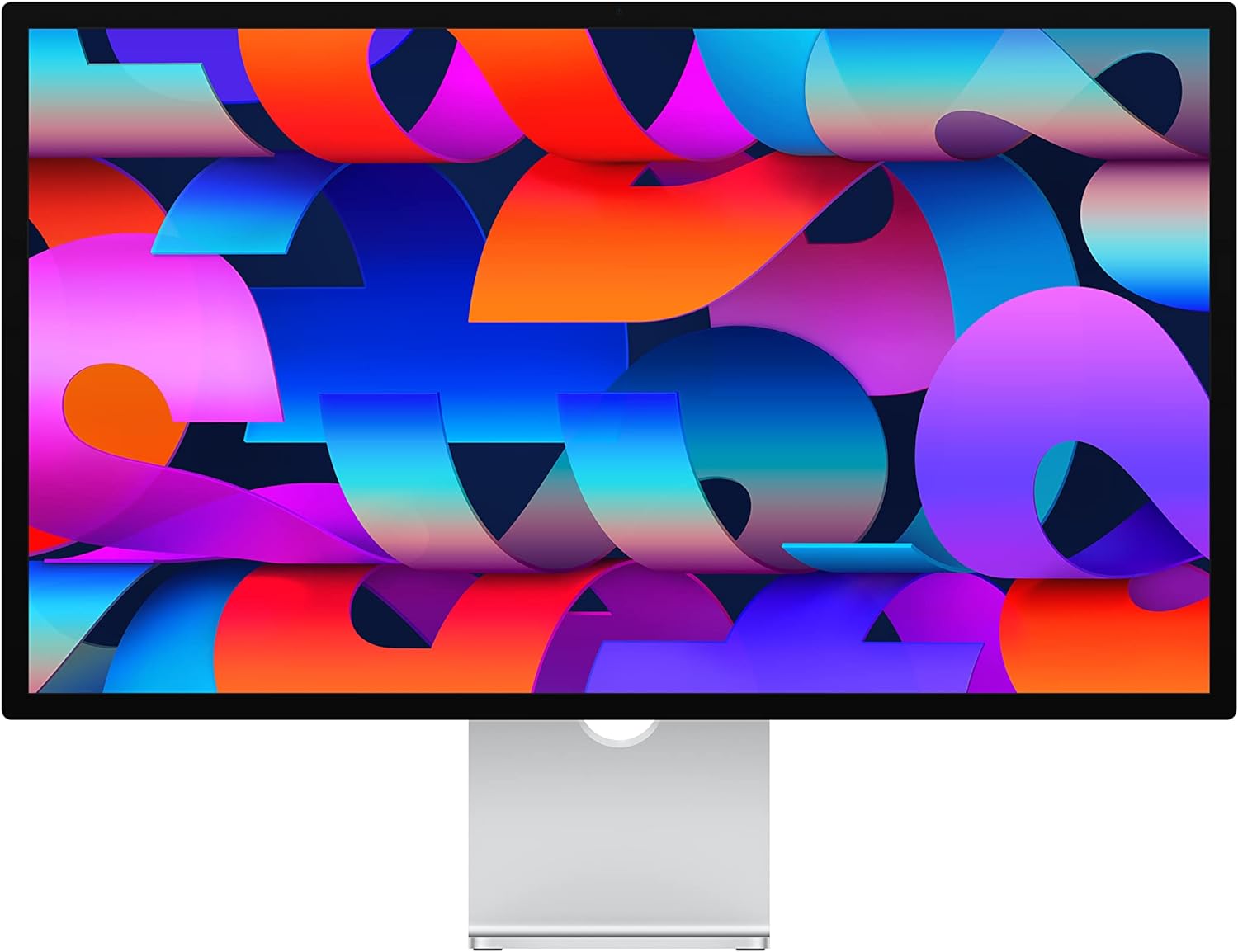
Fifteen years of careless desk work put me in a physiotherapist’s office. Fifteen years of careful desk work could have prevented the visit entirely. The knowledge was available. The implementation was missing.
Don’t wait for pain to motivate change. By the time pain arrives, damage has accumulated. Prevention is easier than recovery. Investment now pays dividends across your entire career.
Your body is the hardware your mind runs on. Optimize it with the same care you optimize your software environment. The returns compound far longer than any code you write.
My cat watches me adjust my chair, position my monitor, and take standing breaks with feline bemusement. She doesn’t understand why these rituals are necessary. From her perspective, I’ve simply learned to stretch, move, and change positions—things she’s done instinctively since kittenhood.
She’s right. Ergonomics is just remembering to treat our bodies with the same care cats provide automatically.

The setup takes an afternoon. The habits take a few weeks to form. The benefits last the rest of your career.
Start today. Your future self will thank you. Your current self will feel better within weeks.
The code can wait an hour while you fix your chair height. The code will always be there. Your spine is less replaceable.